
Three Ways to Use Google Search Console to Improve SEO for small businesses
(without too many graphs)
Google Search Console: it’s totally free, and takes your data directly from Google to strategically boost SEO/AIO. Yet, somehow, most small business owners have never looked at it. Here’s how to fix that.
How to Find the search terms people are Actually using to find you
This is the hokie-pokie of SEO and AIO: finding the words and phrases real people use to find you, then doubling down on those terms in your SEO Hotspots: SEO page titles, meta descriptions, headings, copy, and URL slugs.
Where you’re doing well:
If impressions and clicks are high for terms you didn’t expect, those are opportunities to capitalize on. You want to have high impressions, clicks, and ranking for your business name and primary services or products.
Where to Improve:
If impressions are high and position is in the top 20, but the click rates are low, these are new terms worth weaving into your SEO hotspots to improve ranking and clicks.
How to find search terms in Google Search Console:
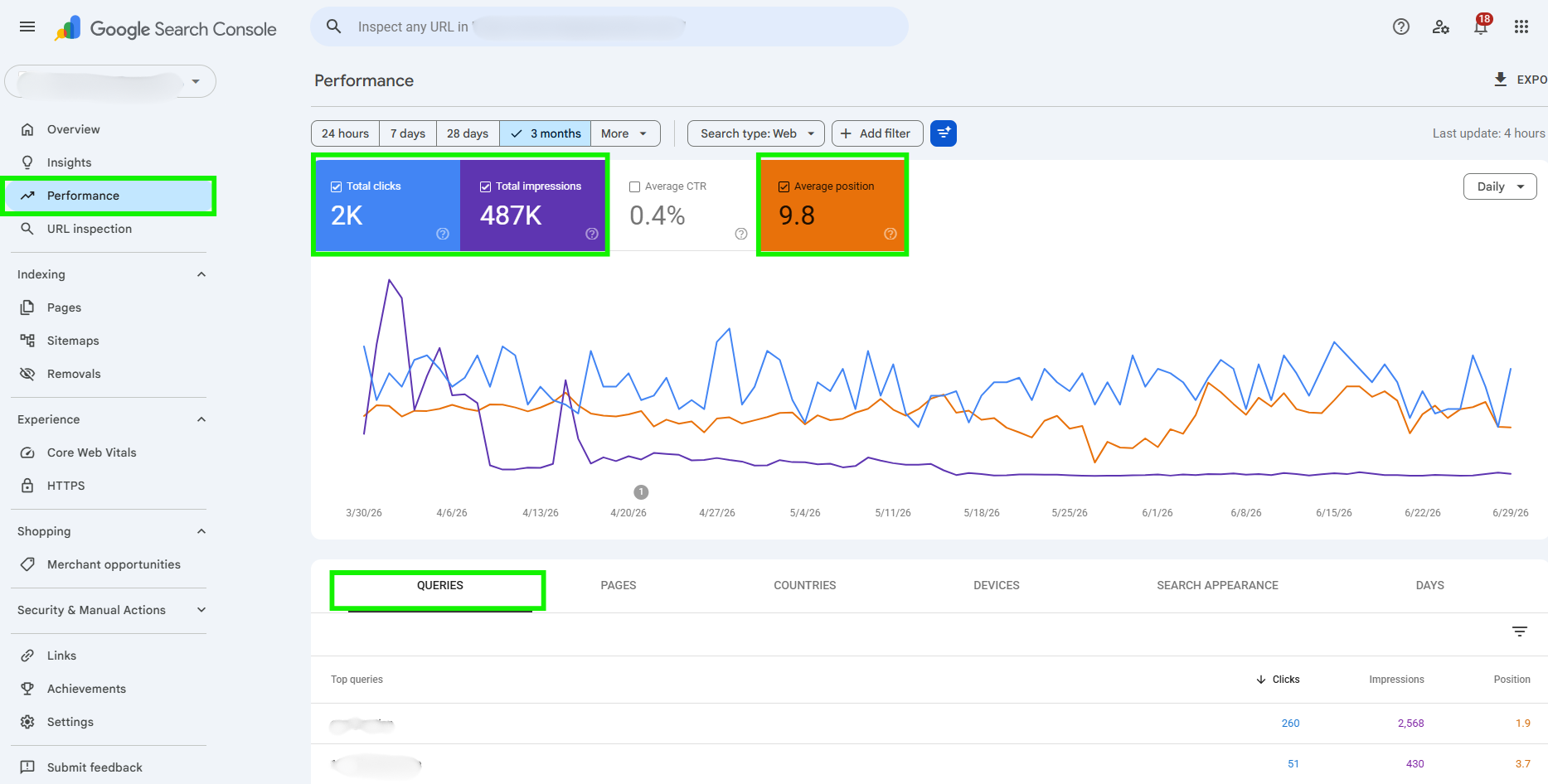
Go to Performance on the left menu.
Just above the graph, select the timeframe you wish to see and select the boxes by Total Clicks, Total Impressions, and Average Position.
Scroll down and select the queries tab.
2. See which Pages on your website are performing well in search results
Your homepage will likely top the list. But everything after that tells you something important: this is the content customers are looking for. It’s where you are showing up as an authority.
The pages in the top five are an excellent opportunity for calls to action or internal links through to products and services you offer that support this user intent.
Click on a page in this list, and it will show you the queries folks are using to get to that page. Go back to step one and optimize your SEO/AIO Hotspots on this page with these terms.
See how Certain Pages are performing in Google search:
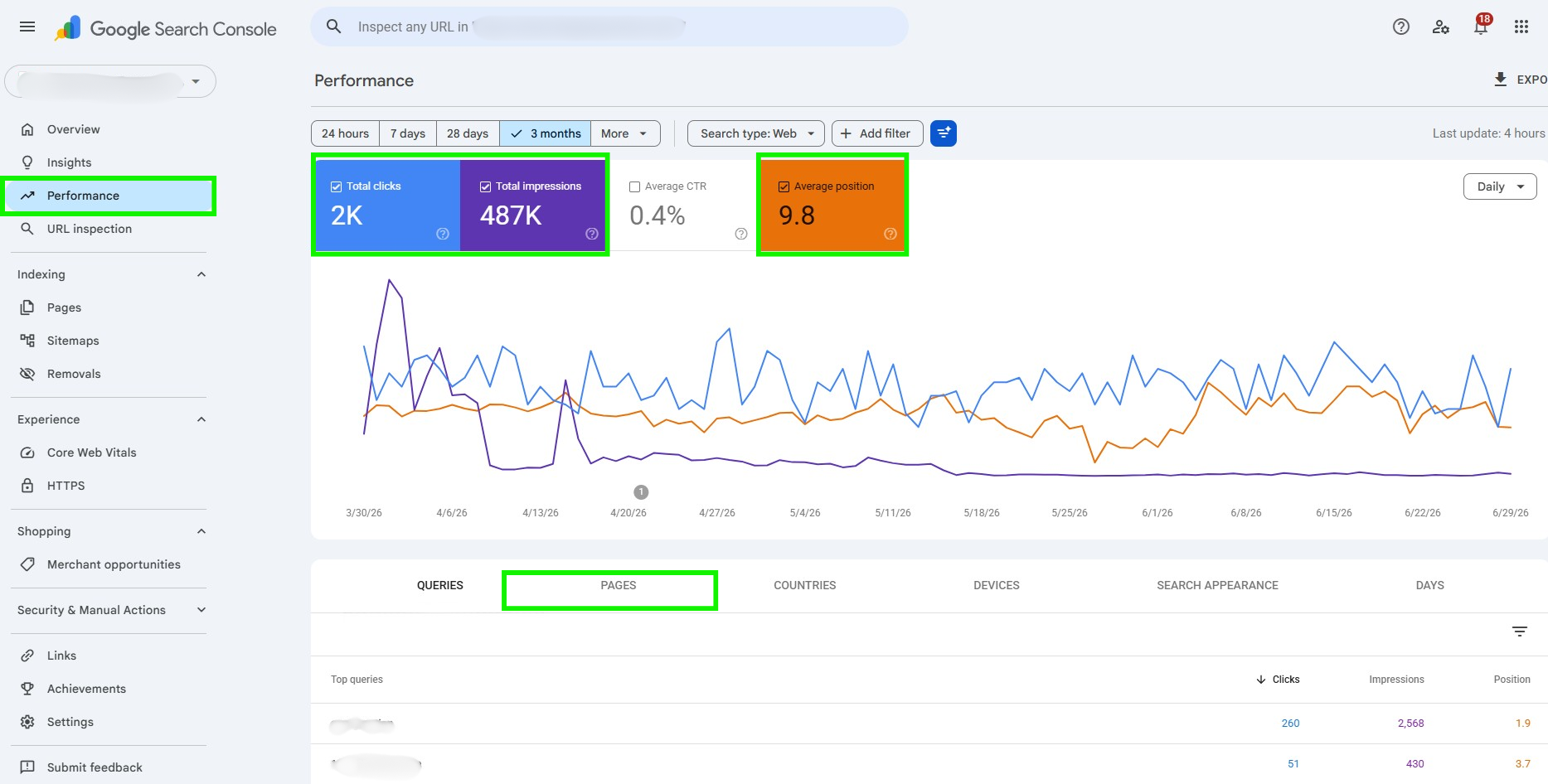
Go to Performance on the left menu.
Just above the graph, select the timeframe you wish to see and select the boxes by Total Clicks, Total Impressions, and Average Position.
Scroll down and select the Pages tab.
3. Look for Local Search Intent
“Near me” searches are incredibly important to rank for, especially in towns with strong tourism industries. Ranking for these is done by focusing on those traditional SEO Hotspots AND including local schema/markup (code) on your webpages.
To find the local intent searches customers are using, put in a custom filter for “regular expressions” (regex).
Look at the queries that surface and decide if any of those terms deserve their own pages, or at least a heading within existing pages on your website. If you can, naturally incorporate “nearby” or “near” along with these terms in your SEO hotspots.
Look at your Pages tab and investigate individual pages to see if they can be optimized to include some of these high-intent terms.
How To Find Local Search Intent in Google:
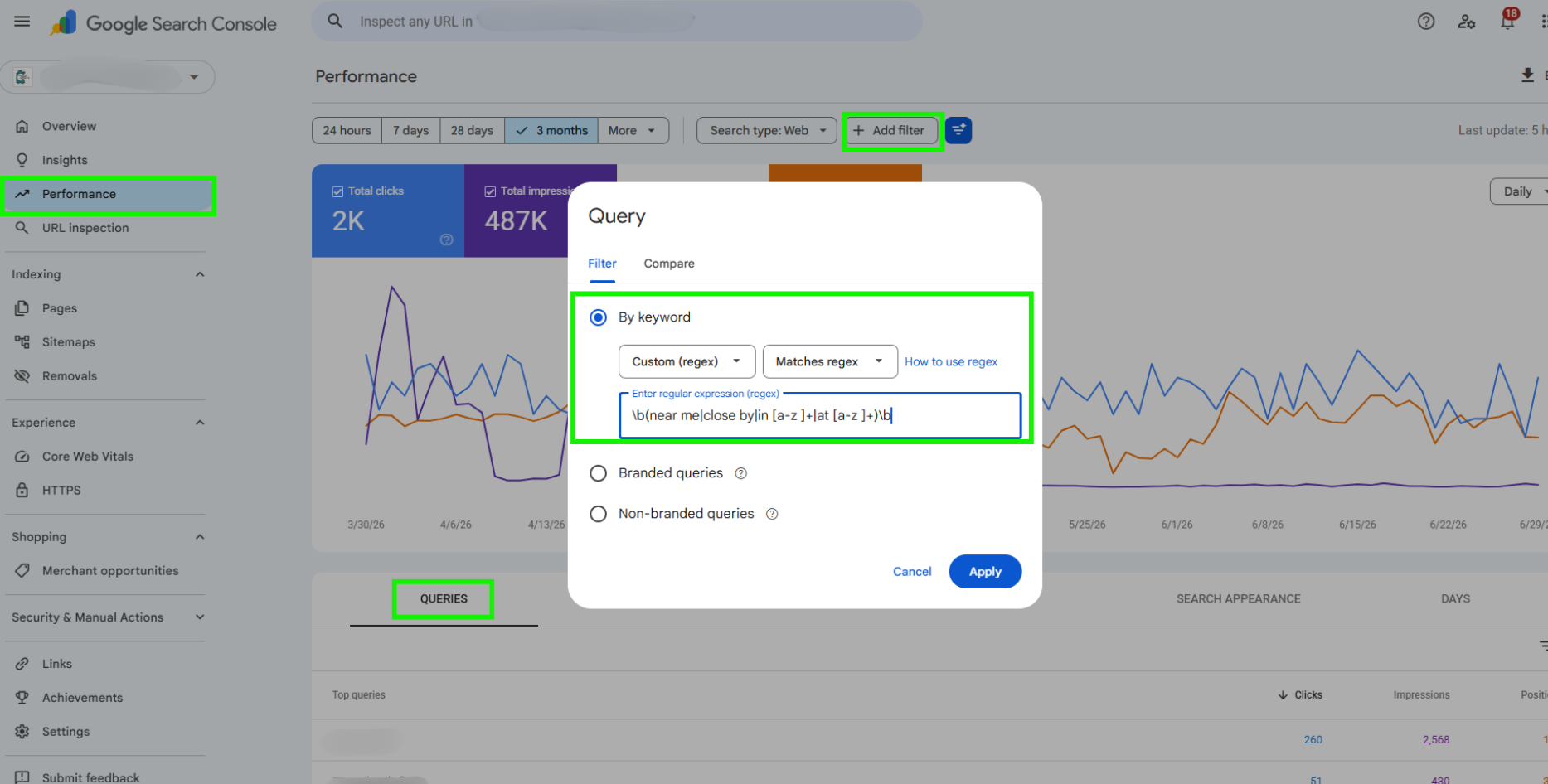
Go to Performance on the left menu.
Just above the graph, select the timeframe you wish to see- for this, the longer the better.
Select + Add Filter, By Keyword, Custom Regex, and Matches Regex.
Copy and paste \b(near me|close by|in [a-z ]+|at [a-z ]+)\b into the text box.
Click Apply to see your results.
Need more help with google search console?
Shoot us an email today!
